How to add an AI presenter to a product video
Written by Omprakash Sah Kanu · August 8, 2026 · Updated August 9, 2026 · 11 min read
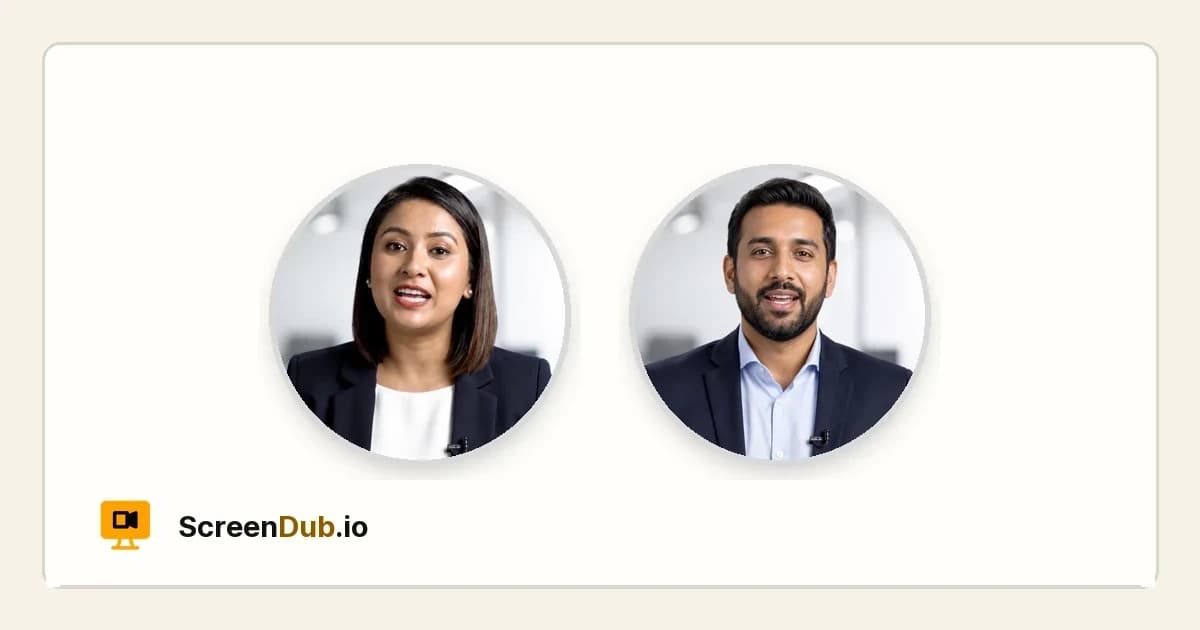
To add an AI presenter to a product video, create the product video first, make sure it has an opening narration line, then generate and preview the presenter before choosing whether to use it. In ScreenDub, AI Presenter creates a short talking-head introduction from the project’s opening narration. It dissolves into the real screen recording; it does not replace the product walkthrough. This guide explains when an AI presenter earns its opening seconds, the exact workflow, how to write the opening, and how the generation is charged.
What ScreenDub’s AI Presenter does
AI Presenter adds context before the interface appears. ScreenDub takes the project’s opening narration, shortens it into one natural sentence, and generates a short talking-head clip. After the introduction, the normal product recording and narration continue. The feature is an optional opening layer, not an avatar-led replacement for a screen demo.
- Input: a finished project with an opening narration line.
- Presenter: a short talking-head introduction generated from that opening.
- Handoff: the presenter dissolves into the real product recording.
- Control: preview it, generate another version, or leave it unused.
- Usage: each generation uses one minute from the plan’s monthly narration time.
When an AI presenter helps
A presenter is useful when the viewer needs orientation before the product appears. It can make a feature announcement, sales follow-up, onboarding overview, or training introduction feel deliberate. The opening should tell the viewer what they are about to accomplish, so the screen recording has a clear purpose when it begins.
Skip the presenter when the viewer has an urgent, narrow question. If someone needs to reset a setting or fix an error, the fastest path is usually the first useful product screen. The presenter should earn its time by adding context that the interface cannot provide immediately.
How to add an AI presenter step by step
- Finish the source video. Record the product workflow or upload the source video, then review the narration, wording, voice, and language. The presenter is generated from this project, so correct the opening before generating it.
- Write one outcome-focused opening. Give the viewer one clear promise, such as “By the end of this walkthrough, your first workspace will be ready.” Avoid greetings, company history, and a list of every feature in the recording.
- Open Options. In the editor, choose AI Presenter from the Options panel. The project needs an opening narration line; generate or regenerate the narration first if it does not have one.
- Generate the clip. Select Generate AI Presenter. ScreenDub tightens the opening into one sentence and creates the talking-head introduction. Generation can take a few minutes, and you can keep editing while it renders.
- Preview it. Watch the completed clip in the panel. Check the delivery, pronunciation, sentence, and handoff into the first product screen.
- Choose whether to use it. Turn on Use in this video to replace the normal opening with the presenter. Clear the setting to keep the normal opening. The rest of the project stays unchanged either way.
- Export as usual. Once the presenter is enabled, render the finished video. The talking-head clip plays first, then the recording continues with the project’s normal narration and editing.
Write an opening worth presenting
Lead with the viewer’s outcome
The opening should answer “What will I get from watching this?” Use a concrete result and keep the product term consistent with the walkthrough. “Publish a customer-ready report from your dashboard” gives the viewer a destination; “Welcome to our product” does not.
Keep one promise
A short presenter intro cannot accurately preview a long list of features. Choose the central job of the video. Let the recording explain the supporting steps and let separate videos cover unrelated outcomes.
Make the handoff predictable
The presenter should end before the first action begins. If the opening promises a report, the first product frame should show the report workflow—not a settings page or an unrelated dashboard. Preview the transition with the first few seconds of the recording, not only the talking-head clip by itself.
Worked examples
- Feature launch: “See how to publish your first customer-ready report from the new Reports workspace.” The recording then demonstrates that workflow.
- Onboarding: “By the end of this walkthrough, your team will have its first workspace ready to use.” The screen sequence should show the setup path.
- Sales follow-up: “This walkthrough shows how the support team turns a resolved ticket into a reusable help article.” The demo should prove that claim directly.
In each case, the presenter gives the viewer the reason to continue, while the real interface supplies the evidence. If the recording does not prove the sentence, revise the opening or revise the video before generating the presenter.
Preview and review checklist
- Does the presenter say the same product and feature names used in the recording?
- Is the promise specific enough for the intended audience?
- Does the sentence finish before the first important screen action?
- Does the delivery fit the purpose: announcement, sales, onboarding, or training?
- Does the handoff feel like one video rather than an unrelated clip placed before it?
- Would the viewer be better served by reaching the product screen immediately?
Current AI Presenter facts
- Role
- Short talking-head introduction before the real product recording
- Requirement
- A finished project with an opening narration line
- Workflow
- Options → AI Presenter → Generate → Preview → Use in this video
- Editing
- Generate again for another version, or turn Use in this video off
- Quota
- Each generation uses 1 minute from monthly narration time
- Export
- The presenter plays first, then the normal project continues
Frequently asked questions
Does AI Presenter replace my screen recording?
No. It replaces only the opening. The talking-head introduction dissolves into your real screen recording, which remains the main part of the video.
What does the AI presenter say?
It uses the project’s opening narration, shortened into one natural sentence that fits the introduction. Write the opening around one viewer outcome before generating it.
Why is Generate AI Presenter unavailable?
The project needs an opening narration line first. Generate or regenerate the narration, then return to AI Presenter in the Options panel.
Can I preview the presenter before adding it?
Yes. Preview the completed clip in the AI Presenter panel, then decide whether to turn on Use in this video.
Can I generate another presenter?
Yes. Choose Generate again to create another version. Each generation uses one minute from your monthly narration time.
Can I go back to the normal opening?
Yes. Clear Use in this video at any time. The presenter remains generated in the project, but the normal opening is used instead.
Try AI Presenter on a product video with a real outcome to introduce. Create a free ScreenDub account, then read how to make a product demo video.